
Manage S3 and CloudFront Without the AWS Console
Upload whole build folders with the right Cache-Control headers, clear your CloudFront cache, and switch between AWS accounts — in one fast desktop app. Your keys stay in your OS keychain, and the app talks to nobody but AWS.
Hoist your build into the bay: S3 storage, CloudFront delivery.
Everything Between Your Build Folder and Your CDN
The S3 and CloudFront jobs you repeat after every release, without clicking through the AWS console or remembering CLI flags.
Header Rules on Every Upload
Set per-bucket rules once — *.js and *.css get Cache-Control: max-age=31536000, *.html gets no-cache — and Hoistbay applies them to every upload automatically. No more re-uploading a build because the headers were wrong.
Keys Never Leave Your Machine
Access keys live in the macOS Keychain or Windows Credential Manager. No account, no backend, no telemetry — and the code is open for you to check.
Every AWS Account, One Click Away
Save a profile per account and region and switch instantly. Session tokens work for temporary credentials, and bucket regions are detected automatically, so no more SignatureDoesNotMatch.
Uploads, Downloads and Bulk Changes
Drag in files or several folders at once with the folder structure kept. Download single objects or whole folders. Multi-select to rename, move, copy across buckets and regions, or delete — folders included.
Clear CloudFront Cache in Seconds
See your distributions next to your buckets, invalidate /* or specific paths after a deploy, and watch the invalidation until it says “Cache cleared”.
Inspect and Fix Metadata
Check any object's properties, HTTP headers, tags and versions in the details pane. Fix Content-Type, Content-Encoding or x-amz-meta-* values in place, without re-uploading.
One Activity Panel for Everything
Uploads, downloads, deletes and cache clears all show live progress in one place, with start and finish times and a clear success or failure status.
Resilient on Flaky Networks
Network hiccups are retried automatically (up to 3 times), and anything that still fails is reported per object instead of failing silently.
Fixes the S3 Errors You Know
Keys with spaces or special characters just work (custom Signature V4 signing), bulk deletes send the required Content-MD5, and folders with 1,000+ objects are fully paginated.
Try It Right Here
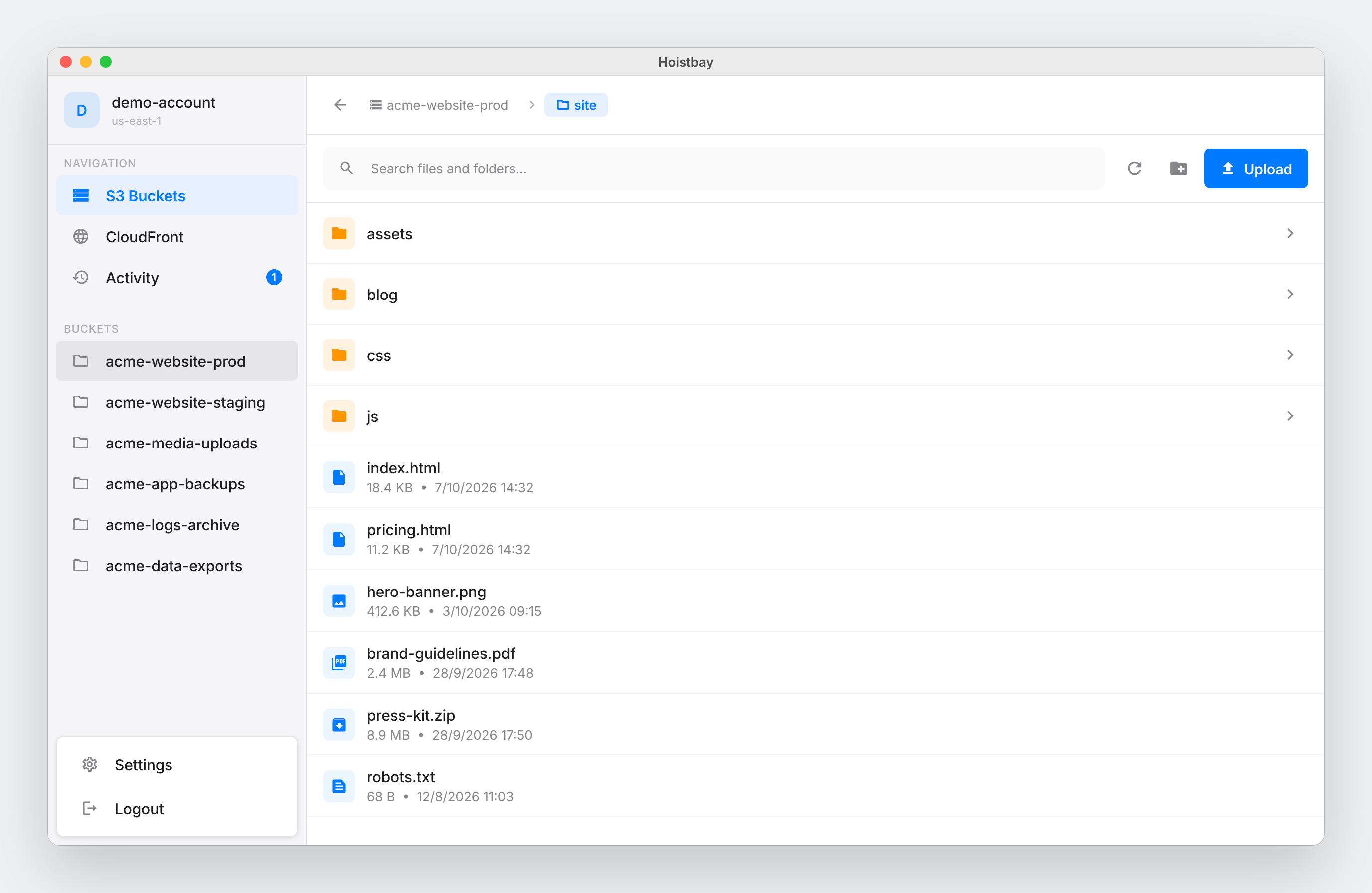
A working replica of the app. Open folders, drop a file to upload it with header rules applied, clear a CloudFront cache, and follow everything in the Activity panel. It all runs in your browser and never touches AWS.
Tip: upload a .js or .html file to see a Cache-Control rule applied, then open Activity.
Your Cloud. Your Credentials.
A new app asking for your AWS keys should earn that trust. Hoistbay has no servers of its own, so there is nowhere for your keys to go except AWS.
Stored in Your OS Keychain
Credentials are encrypted at rest using flutter_secure_storage, which leverages each platform’s native keystore — macOS Keychain and Windows Credential Manager. Keys are only read when the app calls AWS.
Talks Only to AWS
No middleman backend and no analytics. Hoistbay calls the official AWS regional endpoints over HTTPS, using the aws_s3_api SDK, and nothing else.
Open Source (MIT)
Every line is on GitHub to audit, under the MIT license. Prefer least privilege? The README lists the exact IAM permissions each feature needs.
Grab Your Copy
Free and open source. Download the app for your platform, or build it from source with Flutter.
Opening on macOS the first time
Hoistbay isn't notarized by Apple yet, so macOS asks before opening it. Unzip, move Hoistbay to Applications, then right-click the app → Open → Open. If you only see “Move to Trash”, go to System Settings → Privacy & Security and click Open Anyway. You only need to do this once.
Opening on Windows the first time
Unzip the folder and run hoistbay.exe. If SmartScreen shows “Windows protected your PC”, click More info → Run anyway. The source is public, so you can also build it yourself.